

Works with self-hosted WordPress and WordPress.com Business (any install where the REST API is
reachable). Requires WordPress 5.6 or newer, which is when application passwords landed.
Step 1 — Create an application password in WordPress
Sign in to your WordPress admin and go to Users → Profile, then scroll to Application Passwords.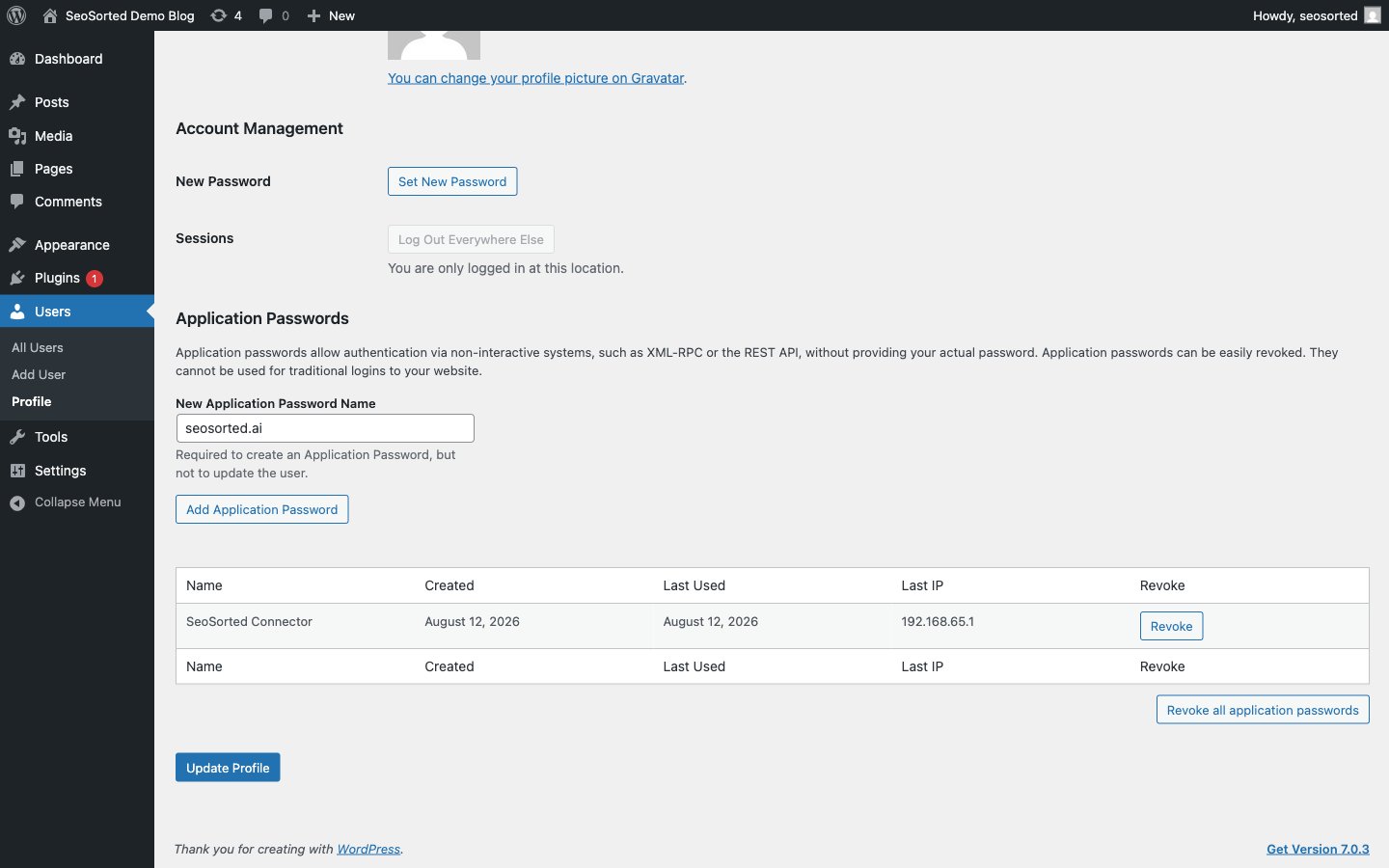
WordPress admin → Users → Profile → Application Passwords
seosorted.ai works well — and click Add Application
Password.
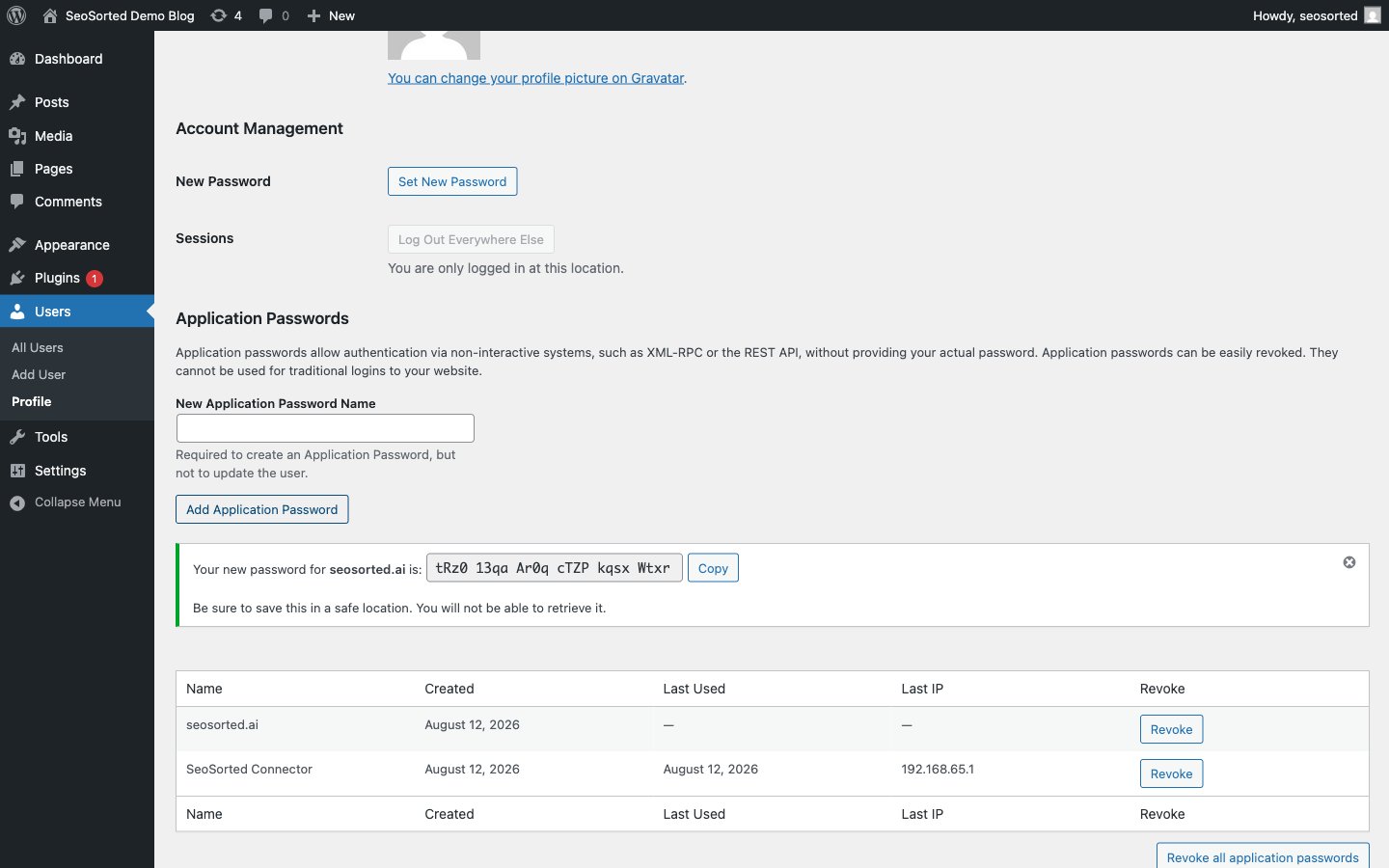
Copy the password now; WordPress will not show it again
tRz0 13qa Ar0q cTZP kqsx Wtxr). Paste it exactly as
shown; the spaces are handled for you.
Don't see an Application Passwords section?
Don't see an Application Passwords section?
WordPress hides it when the site is not served over HTTPS, because the credential travels as a
basic-auth header. Serve the site over HTTPS, or — for a local development site only — set
WP_ENVIRONMENT_TYPE to local in wp-config.php.Some security plugins (Wordfence, iThemes Security, SolidWP) also disable application passwords
or the REST API outright. Look for a “REST API” or “Application Passwords” toggle in the plugin’s
settings.Step 2 — Connect from SeoSorted
Go to Project Settings → Integrations and click Connect on the WordPress card.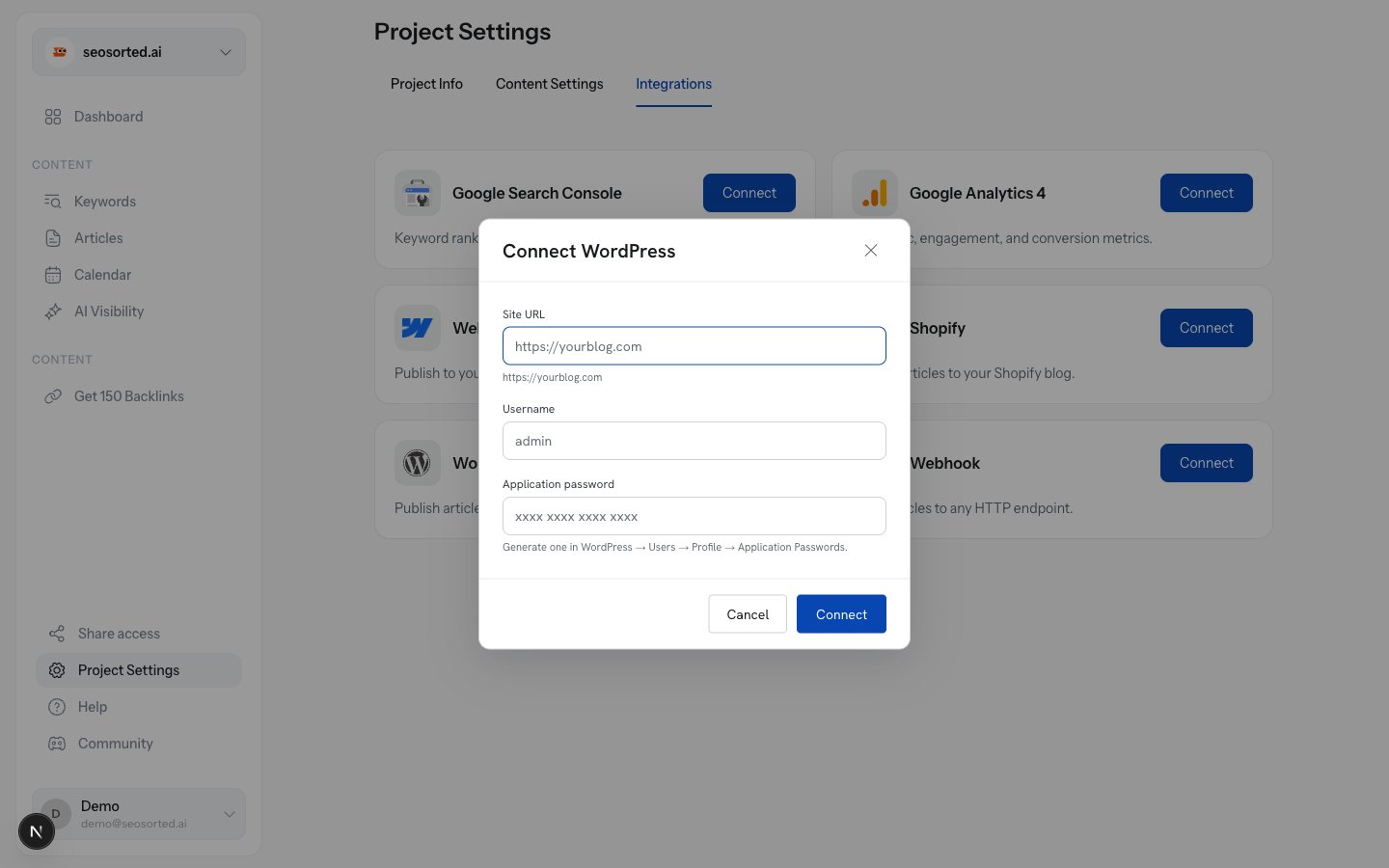
The WordPress connect form
string
required
Your site’s home URL, for example
https://seosorted.ai. Pasting the admin URL
(https://seosorted.ai/wp-admin/) is fine — the /wp-admin part is trimmed automatically.string
required
The WordPress username the application password belongs to — the login name, not the display
name and not the email address.
string
required
The value from Step 1. Spaces are fine.
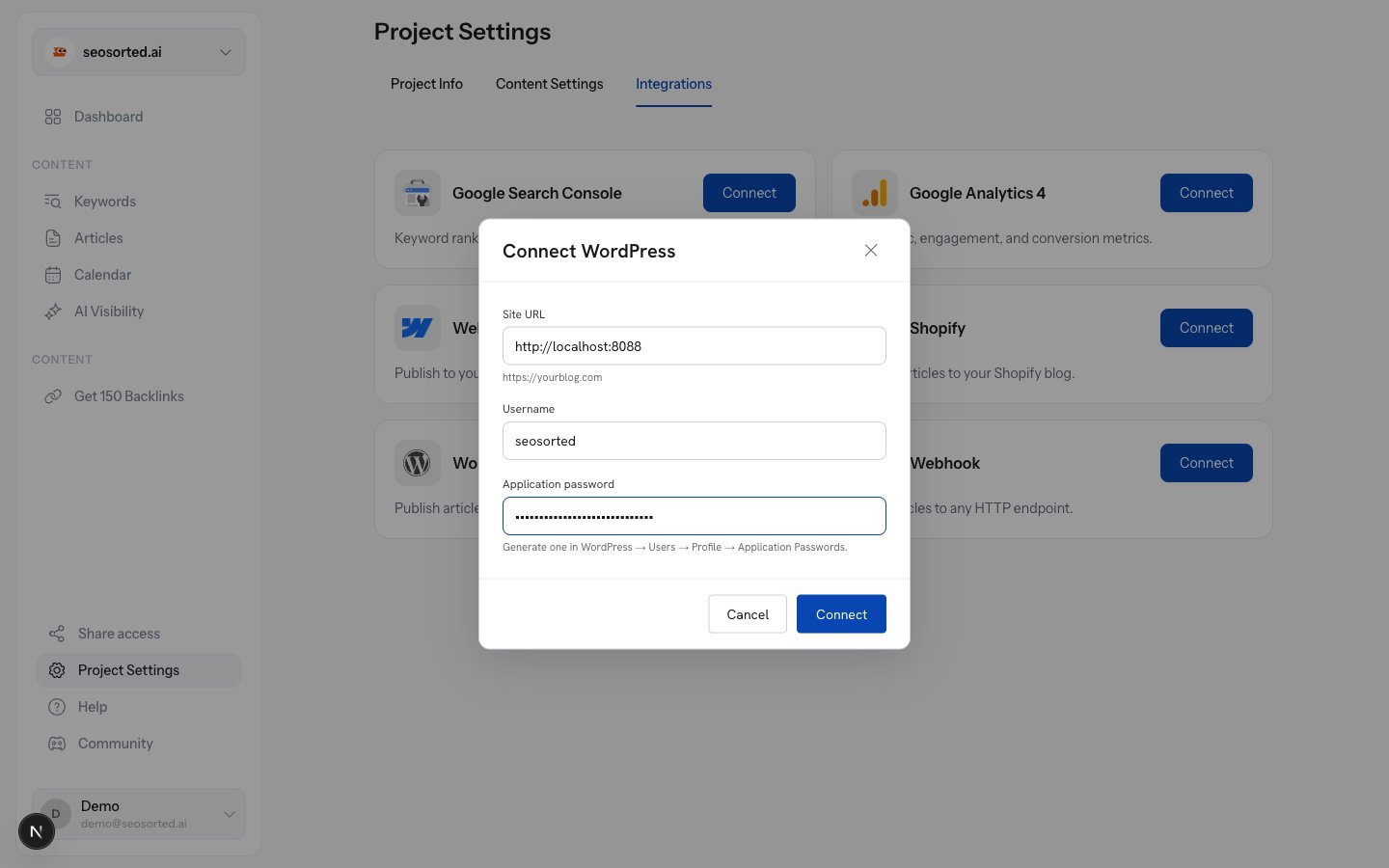
Filled in and ready to connect
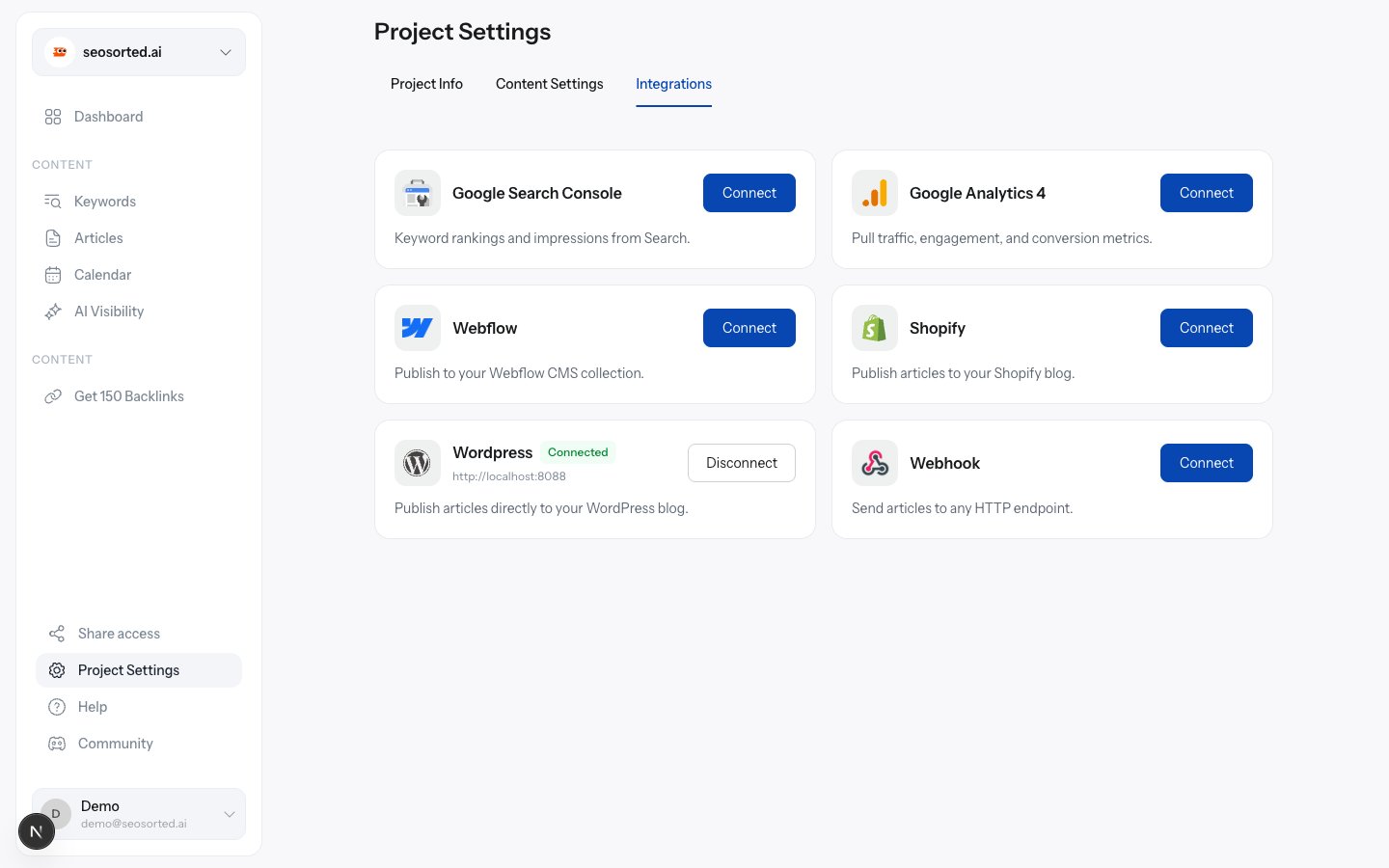
Connected, showing the site the workspace publishes to
Step 3 — Publish an article
Open any finished article and click Publish in the top right, pick WordPress, then Publish now.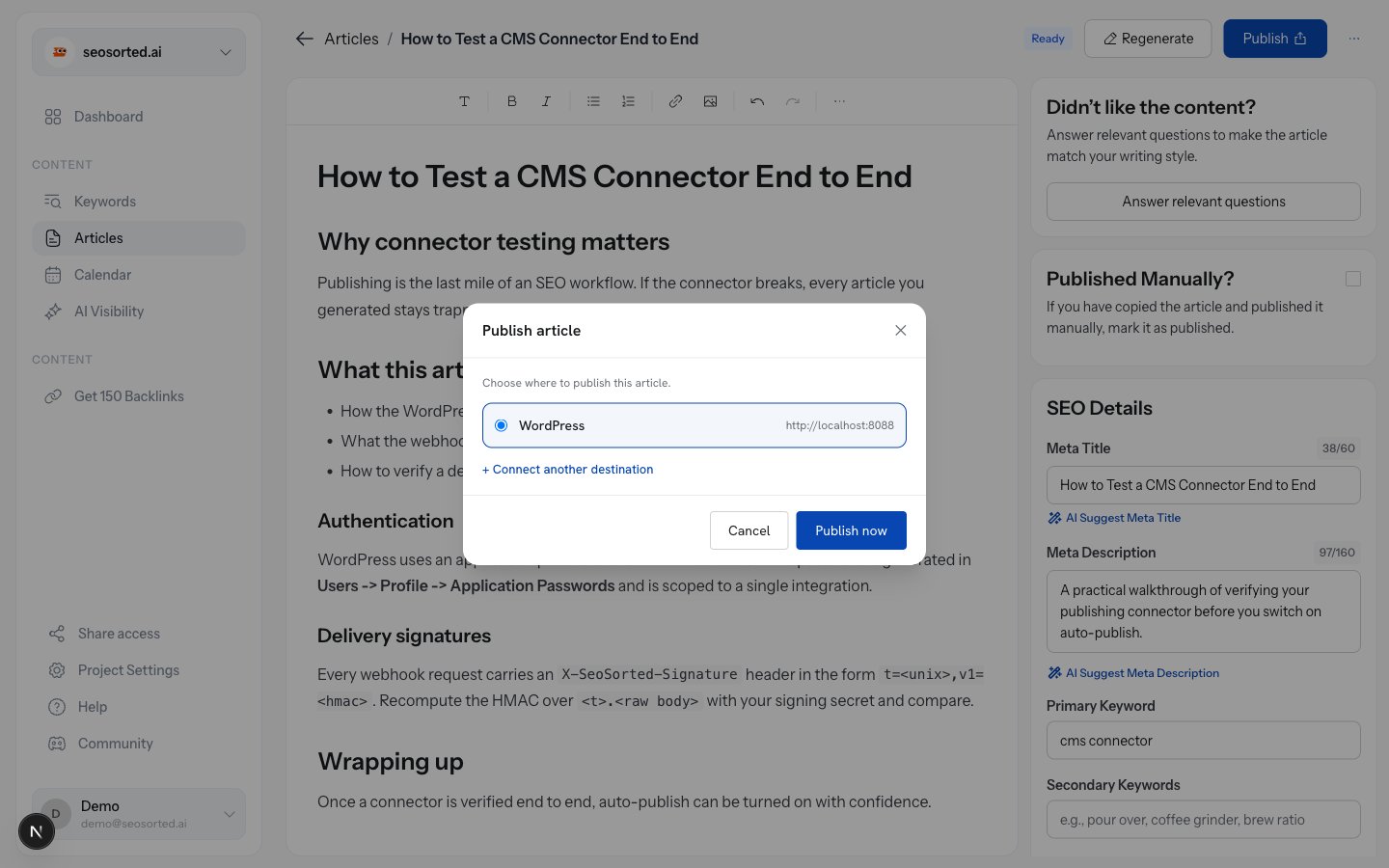
Choosing WordPress as the destination
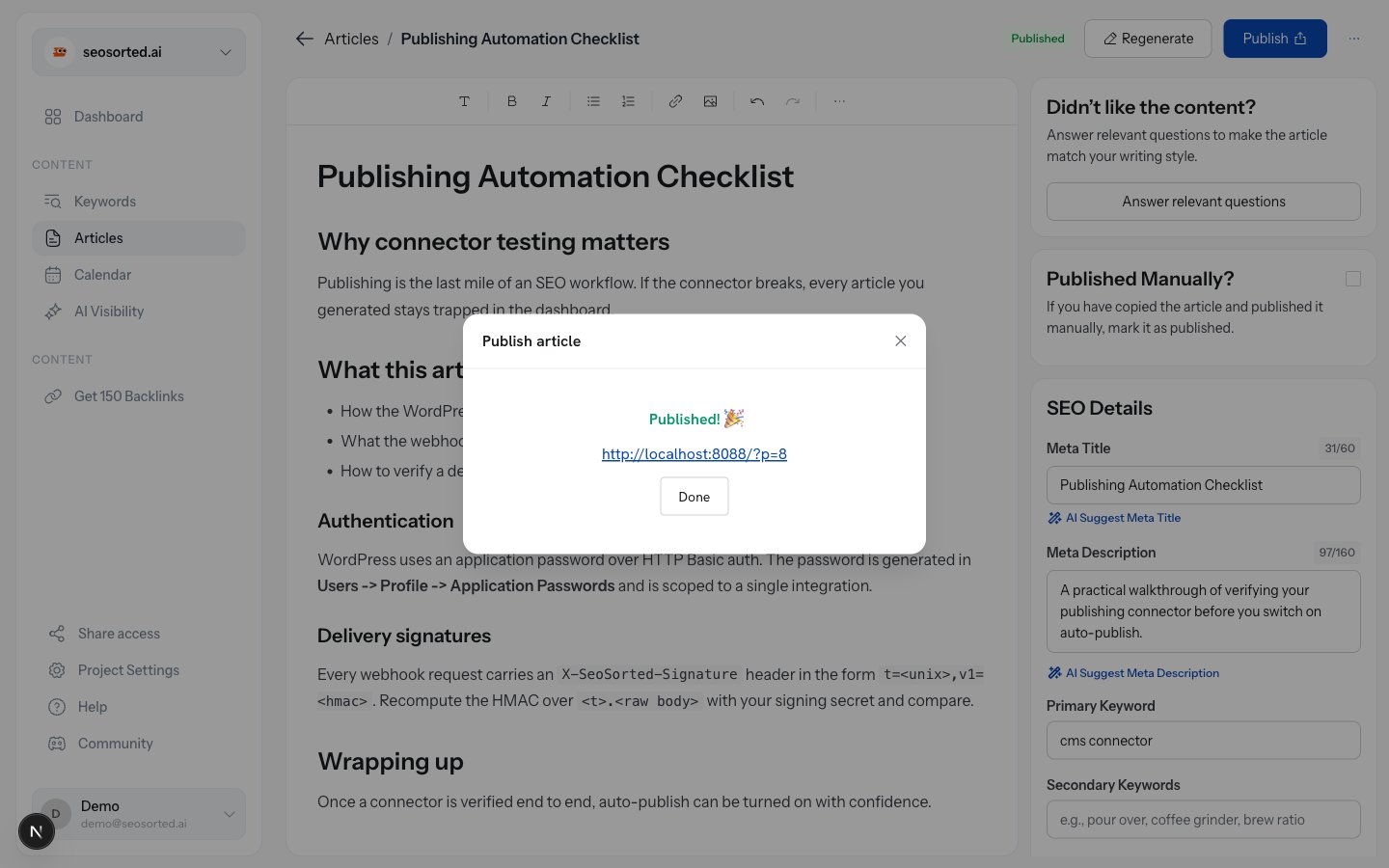
Published — the link goes to the live post
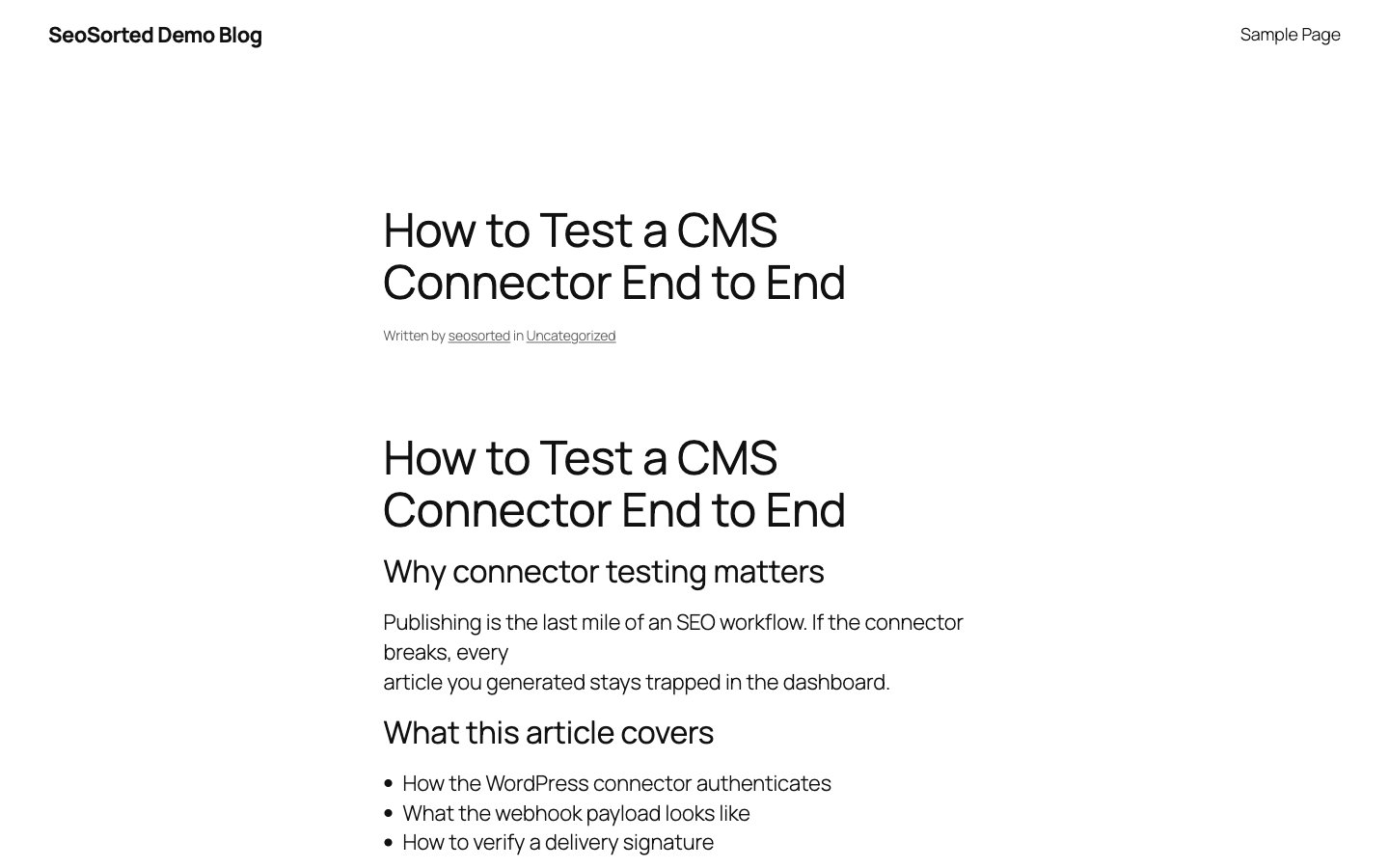
The article live on WordPress
What gets sent
Posts are created with status publish, author = the connected user, and no category, so they
land in your default category.
Re-publishing the same article creates a new post rather than updating the existing one.
Edit in WordPress after the first publish, or use the webhook connector
if you need update semantics.
Common problems
“WordPress rejected those credentials”
“WordPress rejected those credentials”
The username or application password is wrong. Check you used the username, not the email,
and generate a fresh application password — a copied password with a missing character fails
silently in most password managers.
“Couldn't reach the WordPress REST API”
“Couldn't reach the WordPress REST API”
We tried both
/wp-json/ and ?rest_route= and neither returned JSON. Usually one of:- a security plugin blocking the REST API,
- the site sitting behind HTTP basic auth, a staging password, or Cloudflare “Under Attack” mode,
- a site that is not reachable from the public internet.
https://yoursite.com/wp-json/wp/v2/types in a browser. You should
see JSON, not a login page or a 403.Publishing works but the featured image is missing
Publishing works but the featured image is missing
Image uploads need a writable
wp-content/uploads directory. If WordPress can’t write there,
the post still publishes — just without its image.