> ## Documentation Index
> Fetch the complete documentation index at: https://docs.seosorted.ai/llms.txt
> Use this file to discover all available pages before exploring further.
# Connectors overview
> Connect seosorted.ai to the tools that already run your site — your CMS for publishing, Google for performance data.
A connector links one workspace to one external service. There are two kinds:
Where finished articles go: WordPress, Webflow, Shopify, or any HTTP endpoint via a webhook.
Where performance data comes from: Google Search Console and Google Analytics 4.
## Where to find them
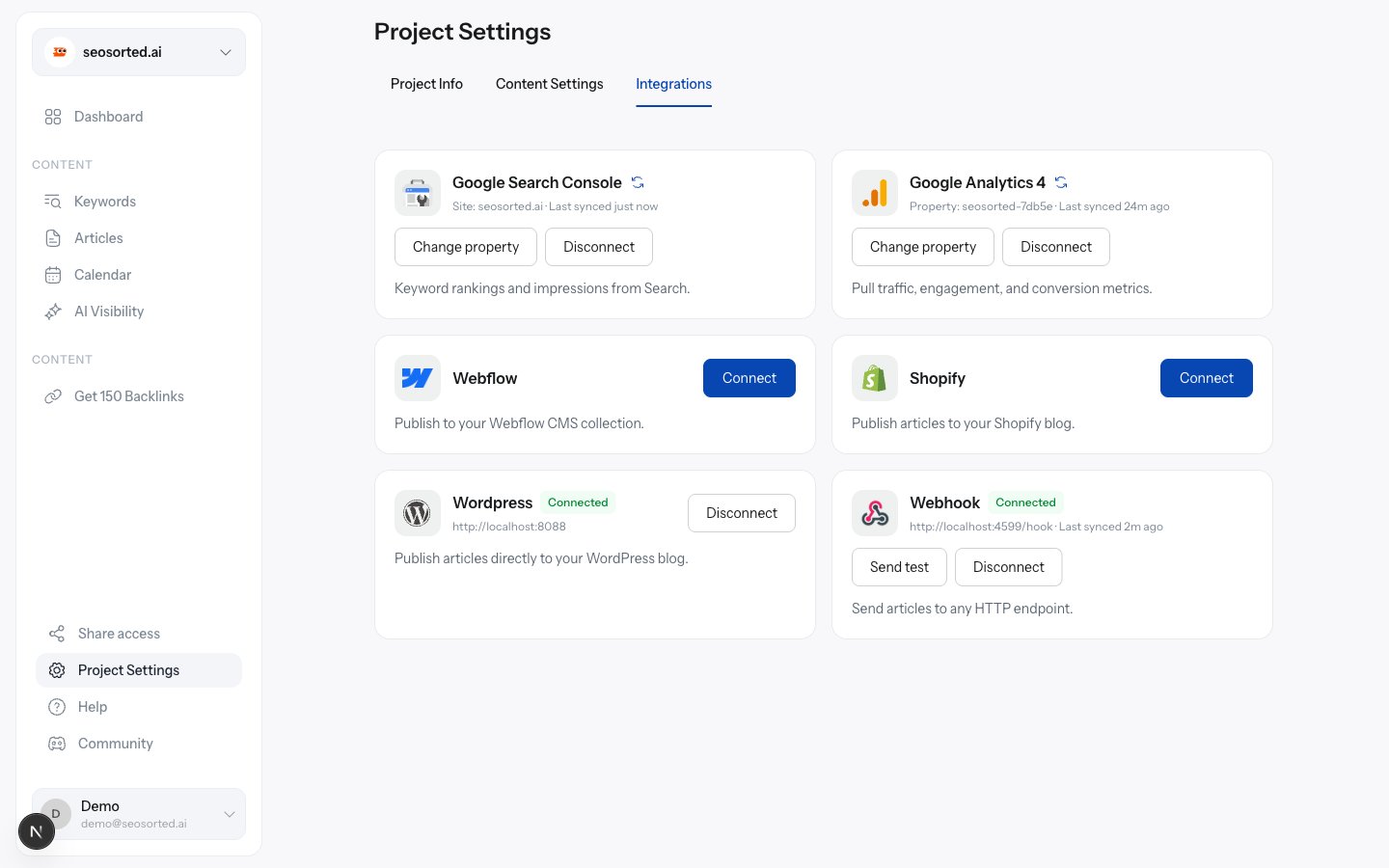
Open your workspace, then **Project Settings → Integrations**.
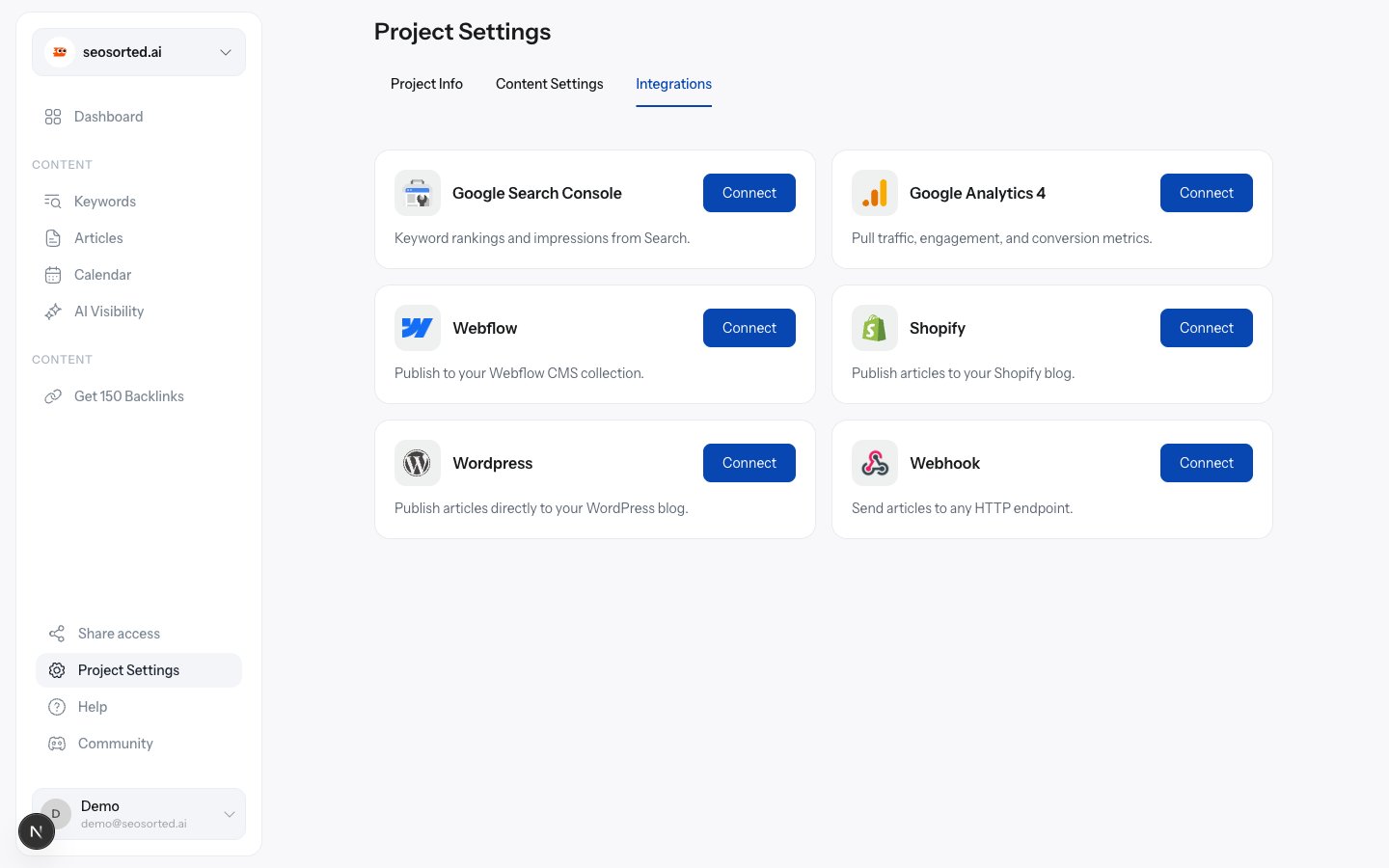 Each card is one connector. Once connected, the card shows a **Connected** badge, what it
points at, and when it last ran.
Each card is one connector. Once connected, the card shows a **Connected** badge, what it
points at, and when it last ran.
 ## What you need before you start
Connecting a CMS or analytics source, and publishing to it, are Pro features. On the Free
plan the Connect button returns *"Connecting a CMS or analytics integration is a Pro feature.
Upgrade to continue."*
Only workspace **Admins** and **Owners** can connect or disconnect. Editors can publish to a
connector that already exists.
You need an account that can create content on the destination — a WordPress user who can
publish posts, a Webflow site with CMS access, a Shopify store you can install apps on.
## One connector per kind, per workspace
A workspace holds at most one connector of each kind. Connecting WordPress again replaces the
stored credentials rather than adding a second site. To publish to two WordPress sites, use two
workspaces.
## Disconnecting
Click **Disconnect** on any connected card and confirm. The dialog spells out what stops working.
## What you need before you start
Connecting a CMS or analytics source, and publishing to it, are Pro features. On the Free
plan the Connect button returns *"Connecting a CMS or analytics integration is a Pro feature.
Upgrade to continue."*
Only workspace **Admins** and **Owners** can connect or disconnect. Editors can publish to a
connector that already exists.
You need an account that can create content on the destination — a WordPress user who can
publish posts, a Webflow site with CMS access, a Shopify store you can install apps on.
## One connector per kind, per workspace
A workspace holds at most one connector of each kind. Connecting WordPress again replaces the
stored credentials rather than adding a second site. To publish to two WordPress sites, use two
workspaces.
## Disconnecting
Click **Disconnect** on any connected card and confirm. The dialog spells out what stops working.
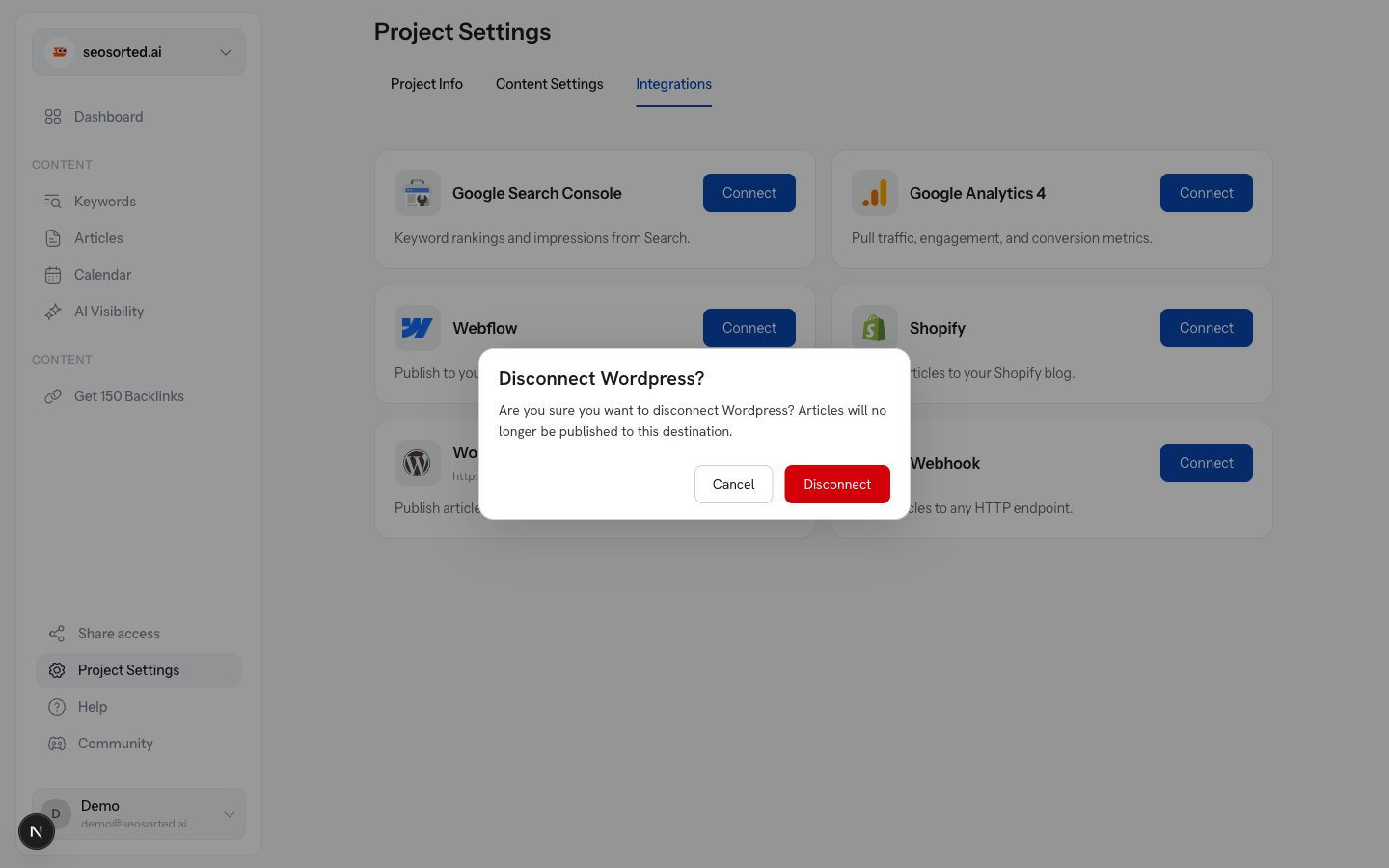 Disconnecting deletes the stored credentials. Articles already published stay where they are —
nothing is removed from your site.
Every example in these docs uses the demo workspace for **seosorted.ai**, so the screenshots
match what you will see, with your own domain in place of ours.
Disconnecting deletes the stored credentials. Articles already published stay where they are —
nothing is removed from your site.
Every example in these docs uses the demo workspace for **seosorted.ai**, so the screenshots
match what you will see, with your own domain in place of ours.